> For the complete documentation index, see [llms.txt](https://docs.pixelchat.ai/llms.txt). Markdown versions of documentation pages are available by appending `.md` to page URLs; this page is available as [Markdown](https://docs.pixelchat.ai/product-guides/lorebook.md).
# Lorebook
### Overview!
Think of a **Lorebook** as your character’s *world memory*.
Your character’s description (persona) can only hold a limited information — just the basics about who they are and what they do.\
\
A **Lorebook** is where you can store much more — details about the world they live in, other characters, events, items, or special rules that shape your story.
Instead of cramming everything into the character’s profile, you can keep all that extra information safely inside a Lorebook.
\
Then, when you chat, the system automatically brings up only the **relevant parts** at the right time.So your character always remembers what’s important — without getting confused or running out of space.
Lorebooks can be **Private** (only you can see and use them) or **Public** (anyone can discover them and attach them to their own chatbots). You can also explore and use Public Lorebooks made by the community — no need to build every world from scratch.
### 🧩 How it Works
* A Lorebook is made up of **entries** (think of them like statements of information).
* Each entry has two main parts:
1. **Keywords** — triggers that tell the system to load the entry’s content into the chat context.
2. **Content** — the facts or story that should be added to chat context when those keywords appear.
* When any of the keywords show up in the **last 4 messages** (both {user} and {char}), that entry’s content is added to the chat’s **context and** used to generate a new response.
* It stays active for about **2 turns** (user message and the AI’s next one). If the keyword keeps coming up, it stays active longer.
* The system limits how much lore can load at once so that the whole context memory is not consumed by the lore — about **20%** of the total context memory.
* Around **740 tokens** for Free users.
* Around **1600 tokens** for True Supporters.
* Around **3,080 tokens** for I’m All In users.
### ✏️ Creating a Lorebook
1. Go to the **main menu** and click **Create → Lorebook.**
2. You’ll see a new Lorebook page. Fill out these parts:
* **Name:** What your Lorebook is called (up to 25 characters). If you make it public, this is the title others will see.
* **Description:** A short summary of what the Lorebook covers (up to 100 characters). It doesn’t affect chat, but it helps others decide whether to use it.
* **Cover Image:** Pick or generate an image that fits your world.
* **Tags:** Add relevant tags (up to 12). Tags help people find your Lorebook and are required for Public Lorebooks.
* **Visibility:** Choose who can see and use your Lorebook — see [Visibility: Private or Public](#visibility-private-or-public) below.
1. Click **Add Entry** to start building your Lorebook.
2. You can have up to **5,000 entries** in one Lorebook.
You can also **import** Lorebooks from other platforms*.*\
Just upload them in **.JSON** format — they’ll appear in the editor and can be edited right away.
### 🌍 Visibility: Private or Public
At the bottom of the Lorebook editor, choose a **Visibility** option:
| Visibility | Who can see it | Who can attach it |
| ----------- | --------------------------------------------- | ----------------------------- |
| **Private** | Only you | Only you |
| **Public** | Anyone, once approved — it appears in Explore | Anyone, to their own chatbots |
* **Private** Lorebooks are saved straight away with **Save Lorebook**.
* **Public** Lorebooks are sent to moderation first. The button changes to **Submit Lorebook for Review**, and your Lorebook shows up in Explore once it’s approved.
* You can switch an existing Lorebook between Private and Public at any time from its editor.
{% hint style="info" %}
On a Public Lorebook, other users can read the **name, description, tags and all entries** on its Lorebook Profile. Don’t put anything in a Public Lorebook that you want to keep to yourself. Your chats are never shared.
{% endhint %}
Public Lorebooks must follow the [Community Guidelines](https://docs.pixelchat.ai/community-guidelines), just like public chatbots.
### 📜 Adding Entries
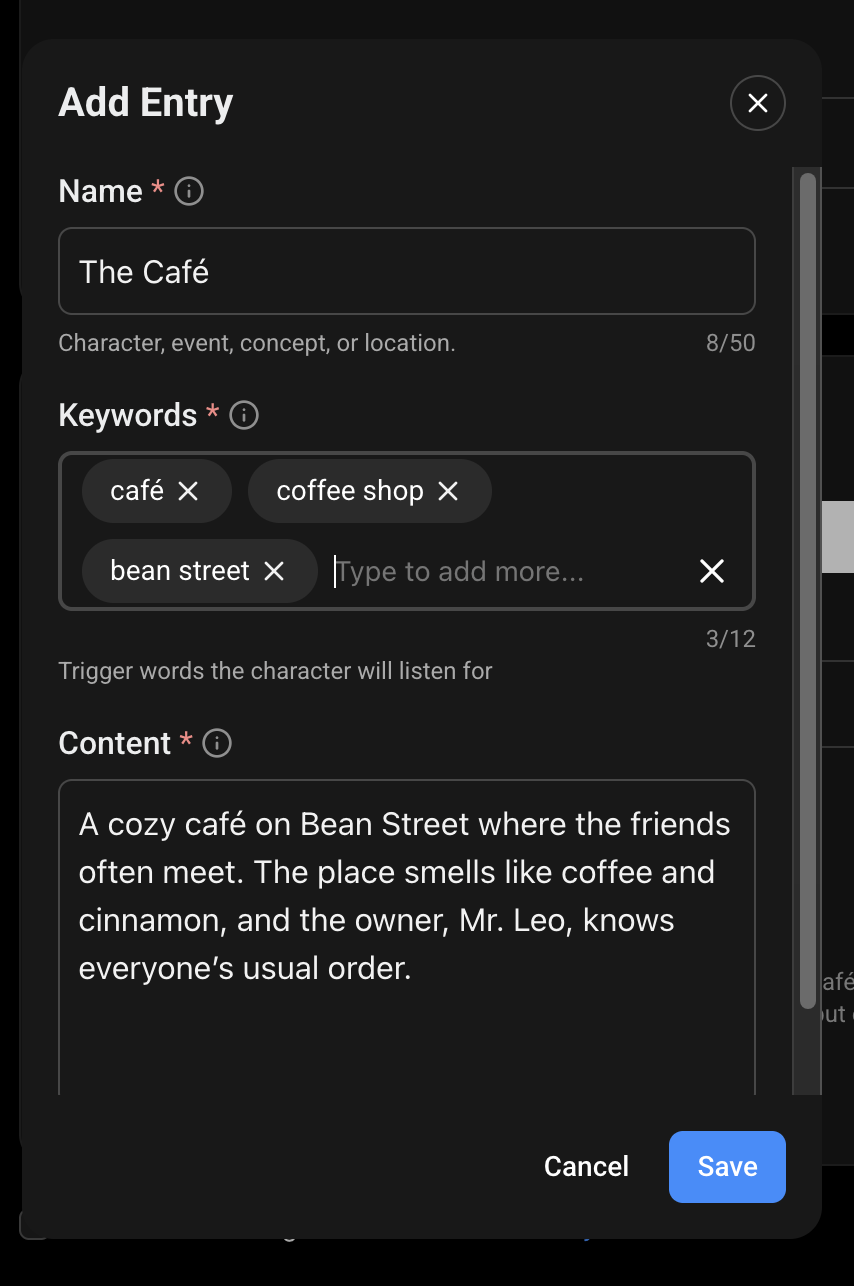
Each entry is one piece of information — such as a character, place, event, or rule.
**Here’s what you’ll fill in:**
* **Name:** A label for your entry.
* **Keywords:**
* Add words or phrases that will “wake up” this entry.
* Type one, then press **Enter** to save it.
* You can add several keywords for one entry.
* Keep them specific — like names or key terms.
* If two entries share a keyword, both will be added when that word appears in chat.
* **Content:**
* Write the info that should be added to context.
* Keep it clear and simple — 2–5 sentences are usually perfect.
* Maximum: **2,000 characters per entry.**
**Example:**
If You or the Character mention “café” in chat, that bit of information will be added to the chat context, generating a response based on that info.
### Keyword Matching
#### Prefix and Suffix
You can use a `*` symbol (called a wildcard) to match parts of a word.\
This helps trigger lore when the keyword appears as part of a bigger word.
**Examples:**
* `*book` → will match “storybook,” “notebook,” “logbook”
* `home*` → will match “homeland,” “homework,” “homemade”
#### Recursive Entries
Lore entries can’t trigger each other.\
That means if one entry mentions another keyword, it won’t cause more lore to load.\
Only the actual chat messages are checked for keyword matches — not the content inside other entries.
#### Multiple Words
Keywords can include more than one word, but the full phrase has to match exactly.
**Example:**
* The keyword `coffee shop` will only match when **coffee shop** appears together in chat — not if the words are separated.
#### Shared Keywords
If two or more entries share the same keyword, they’ll all be added to the context when that keyword appears in chat.
#### Using {{user}} and {{char}}
You can also use `{{user}}` and `{{char}}` as keywords.\
These automatically match whenever the user’s name or the character’s name is mentioned in chat.\
It’s a handy way to add background information when someone refers to the user or the character directly.
### 🗂️ Managing Your Lorebooks
All the Lorebooks you’ve created live in **My Creations → Lorebooks**.
* Each card shows its visibility badge, such as **Private** or **Public**.
* Use the filter to show **All**, **Public**, **Private**, **Under Review** or **Action Required** Lorebooks.
* Open the **⋮** menu on a card to **Edit**, **Remove** or **Clone** a Lorebook.
**Under Review** means a Public Lorebook is waiting for moderation. **Action Required** means it needs changes before it can be public. Update the Lorebook so it follows the Community Guidelines, then submit it again.
### 🔍 Exploring Public Lorebooks
Click **Lorebooks** in the main menu to open **Explore**, where you can browse every approved Public Lorebook.
* **Search** for Lorebooks by keyword.
* **Narrow by tag** to include tags, or use the **–** button next to a tag to exclude it.
* **Sort** by **Latest**, **Oldest** or **Most Entries**.
Each card shows the Lorebook’s cover, name, creator and number of entries. From the card you can:
* Tap the **♡** to add it to your Favorites.
* Open the **⋮** menu to **Share**, **Report** or **Block Creator**.
* Click the card to open its **Lorebook Profile**.
### 📖 The Lorebook Profile
A Lorebook Profile shows the cover image, name, creator, description and tags, plus the full list of **Entries**. You can search the entries by name or keyword, so you can check exactly what a Lorebook contains before you use it.
From the profile you can:
* **Attach Lorebook** — attach it to one of your chatbots in a couple of clicks (see below).
* **Share** — copy the link or share it on Facebook, X, Reddit, Telegram, WhatsApp, Messenger or email. Sharing a Lorebook never shares your chats.
### 🔗 Attaching a Lorebook to a Character
There are two ways to attach a Lorebook. Either way, **only one Lorebook** can be attached to a character at a time.
#### From the Lorebook Profile
1. Open any Lorebook Profile (your own or a Public one).
2. Click **Attach Lorebook**.
3. Search for one of your chatbots, or filter them by **All**, **Public**, **Private** or **Unlisted**.
4. Select the chatbot and click **Attach Lorebook**.
If that chatbot already has a Lorebook, the button changes to **Replace Lorebook** and the new one takes its place.
#### From the Character Editor
1. Open your **Character Editor**.
2. Scroll to the **Advanced** section.
3. Under **Lorebook**, click **Attach Lorebook.**
4. Use the dropdown to choose where to pick from:
* **My Lorebooks** — Lorebooks you created.
* **Favorites** — Lorebooks you’ve favorited.
* **Discover** — all Public Lorebooks.
5. Pick one and hit **Save.**
Once attached:
* The Lorebook connects to that character’s all chats.
* You can **Edit** or **Remove** it anytime.
* **Only one Lorebook** can be attached to a character.
* Any changes you make to the Lorebook apply to existing chats as well — no need to reattach.
#### Lorebooks on Chatbot Profiles
When a chatbot has a Lorebook attached, its name appears on the **Chatbot Profile**, just below the chatbot’s stats.
* **Public Lorebook:** anyone can click it to open its Lorebook Profile, then view, favorite or attach it.
* **Private Lorebook:** the name is still shown, but other users can’t click it or view its entries.
### ❤️ Favorite Lorebooks
Found a Lorebook you like? Tap the **♡** on its card to favorite it, and tap it again to remove it.
To see them all, go to **Favorites** in the main menu and open the **Lorebooks** tab. Your favorites also appear under **Favorites** when you attach a Lorebook from the Character Editor.
### 🚩 Reporting a Lorebook
If a Public Lorebook breaks the rules, open the **⋮** menu on its card and choose **Report**. Pick the type of issue:
* Lorebook doesn't respect our content guideline
* Lorebook is not properly categorized
* Lorebook is used without my authorization
* Broken image or invalid lorebook definition
Add some details to help us understand the issue, then submit. All reports are reviewed within 5 business days. To hide a creator’s content from your feed, choose **Block Creator** from the same menu.
### 💡 Tips for Better Results
✅ **One topic per entry.**\
Each entry should focus on one thing — one character, place, rule, or event.
✅ **Be specific with keywords.**\
Use specific names or titles — not general words like “world” or “magic.”
✅ **Keep content short and factual.**\
Don’t write full stories in one entry — just what’s needed for the AI to stay accurate.
✅ **Make Public Lorebooks easy to find.**\
Use a clear name, a description that says what’s covered, a good cover image and accurate tags.
### ❓FAQ
Can I use more than one Lorebook per character?
Not right now — one per character. Attaching a new one replaces the current one.
Can I add Lorebooks to public characters?
Yes — Lorebooks can be attached to both private and public characters. If you attach a Private Lorebook to a public character, other users will see its name on the Chatbot Profile but won’t be able to open it.
Can I share my Lorebook with others?
Yes. Set its visibility to **Public** and submit it for review. Once approved, anyone can find it in Explore, view its entries and attach it to their own chatbots. You can also share a link to it from its Lorebook Profile.
Can I use Lorebooks made by other people?
Yes. Browse **Lorebooks** in the main menu, open one you like and click **Attach Lorebook**, or pick it from **Discover** when attaching from the Character Editor.
Can other people edit my Public Lorebook?
No. Other users can view, favorite and attach your Public Lorebook, but only you can edit it.
Why is my Lorebook "Under Review"?
Public Lorebooks are checked by moderation before they appear in Explore. Private Lorebooks don’t need review. If your Lorebook shows **Action Required**, update it to follow the Community Guidelines and submit it again.
Will other people see my chats if they use my Lorebook?
No. Making a Lorebook public or sharing its link only shares the Lorebook itself. Your chats always stay private.
Where can I find Lorebooks I've favorited?
Go to **Favorites** in the main menu and open the **Lorebooks** tab.